Enhancing
Google Keep
Usability in
Gmail's Side Panel
Enhancing
Google Keep
Usability in
Gmail's Side Panel
Background
Background
Identifying the Need for Improvements
in Google Keep Panel within Gmail
Identifying the Need for Improvements in Google Keep Panel within Gmail
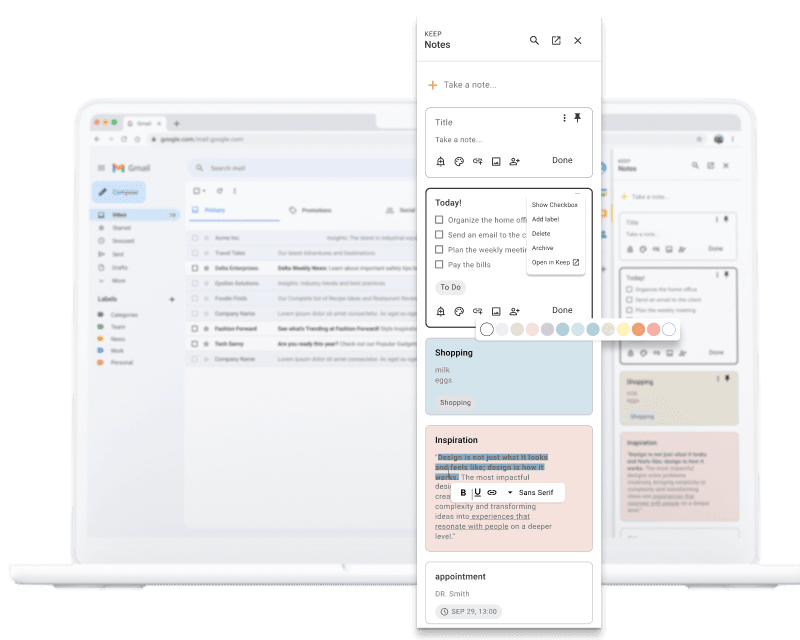
During my personal use of Google Keep, as well as conversations with friends, I noticed that users are not entirely satisfied with the Keep panel inside Gmail. I decided to explore this further and work on improving it, as it is a tool I would like to use more often, but it lacks several features that could enhance its usability.
During my personal use of Google Keep, as well as conversations with friends, I noticed that users are not entirely satisfied with the Keep panel inside Gmail. I decided to explore this further and work on improving it, as it is a tool I would like to use more often, but it lacks several features that could enhance its usability.
During my personal use of Google Keep, as well as conversations with friends, I noticed that users are not entirely satisfied with the Keep panel inside Gmail. I decided to explore this further and work on improving it, as it is a tool I would like to use more often, but it lacks several features that could enhance its usability.
The Problem
The Problem
Current Limitations: Lack of Organizational and Formatting Features
Current Limitations:
Lack of Organizational and Formatting Features
While the main Google Keep platform (when accessed through a Chrome tab) offers better functionalities, the Keep panel within Gmail is very limited. It lacks the ability to move notes, offers no text formatting options (such as bold, font changes, colors), and does not allow users to add titles, subtitles, or organize notes effectively.
While the main Google Keep platform (when accessed through a Chrome tab) offers better functionalities, the Keep panel within Gmail is very limited. It lacks the ability to move notes, offers no text formatting options (such as bold, font changes, colors), and does not allow users to add titles, subtitles, or organize notes effectively.
Goal
Goal
My aim is to make the Google Keep side panel more functional and user-friendly, addressing the key needs of the users
My aim is to make the Google Keep side panel more functional and user-friendly, addressing the key needs of the users
Research
Research
Validating User Pain Points Through Research and Surveys
Validating User Pain Points Through Research and Surveys
I conducted an online survey and user research to confirm these pain points. The findings supported the need for improvements:
I conducted an online survey and user research to confirm these pain points. The findings supported the need for improvements:
86%
86%
of respondents indicated that quick access to information and the ability to search easily are the most important aspects.
of respondents indicated that quick access to information and the ability to search easily are the most important aspects.
64%
64%
highlighted the importance of organizing notes into categories, folders, and using tags.
highlighted the importance of organizing notes into categories, folders, and using tags.
I also analyzed competitors, such as Apple Notes, Trello, and Any.do, to understand how they tackle similar challenges.
I also analyzed competitors, such as Apple Notes, Trello, and Any.do, to understand how they tackle similar challenges.



Results
Results
The key problems I aimed to solve:
The key problems I aimed to solve:
01
01
Search Improvements
Search Improvements
Allow users to find specific words within notes, not just by note titles, and enable filtered searches.
Allow users to find specific words within notes, not just by note titles, and enable filtered searches.
02
02
Better Organization
Better Organization
Introduce folders, tags, colors, and text formatting to make organizing notes easier.
Introduce folders, tags, colors, and text formatting to make organizing notes easier.
03
03
Collaboration
Collaboration
Provide the ability to easily share notes, edit, and update information collaboratively.
Provide the ability to easily share notes, edit, and update information collaboratively.
Design
Design
I based my design on Google’s aesthetic, ensuring that the clean and organized look of Google Keep remained intact. The focus was on creating a logical hierarchy for notes and an intuitive, user-friendly interface that aligned with Google’s overall design principles.
I based my design on Google’s aesthetic, ensuring that the clean and organized look of Google Keep remained intact. The focus was on creating a logical hierarchy for notes and an intuitive, user-friendly interface that aligned with Google’s overall design principles.
Typography
Aa
Semi bold
Regular
a b c d e f g hi j k l m n o p q r s t u v w x y z
a b c d e f g h i j k l m n o p q r s t u v w x y z
Roboto
a b c d e f g h i j k l m n o p q r s t u v w x y z
a b c d e f g h i j k l m n o p q r s t u v w x y z
Typography
Aa
roboto
Semi bold
a b c d e f g h i j k l m n o p q r s t u v w x y z
a b c d e f g h i j k l m n o p q r s t u v w x y z
Regular
a b c d e f g h i j k l m n o p q r s t u v w x y z
a b c d e f g h i j k l m n o p q r s t u v w x y z
Colors
Colors
Primary
Primary
#FBBC04
#FBBC04
#4A4A4A
#4A4A4A
#A6A6A6
#A6A6A6
#EDEDED
#EDEDED
Shades of Gray
Shades of Gray
Solution
01
Hover-Activated Editing Icons
Hover-Activated Editing Icons
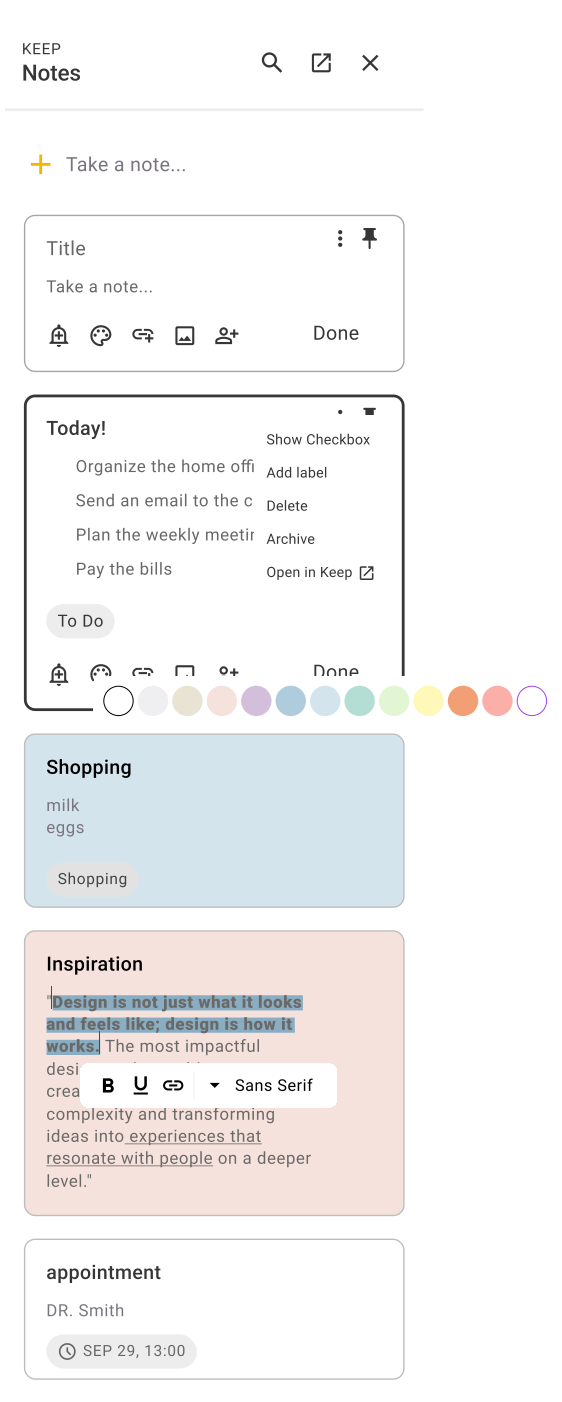
When hovering over a note, editing icons appear, allowing users to quickly add a reminder, change the note color, attach a link or file/image, and share the note. This feature enhances ease of access to key actions without needing extra clicks.
03
Tag Visibility in Dropdown Menu
Tag Visibility in Dropdown Menu
I added the ability to tag notes directly from the dropdown menu, making tags more visible and easier to use. This helps users organize notes based on categories or specific topics.
05
Clearer Reminder Visibility
Clearer Reminder Visibility
When adding a reminder, the exact date and time for the reminder are displayed clearly in the note, improving visibility and reducing confusion over when the reminder will trigger.
02
Convert Notes to Lists in the Dropdown Menu
Convert Notes to Lists in the Dropdown Menu
I added the option to convert a note into a checklist directly from the dropdown menu. Previously, this option was available through a separate icon, and users couldn't switch formats on the fly.
04
Text Formatting Options on Selection
Text Formatting Options on Selection
When a specific portion of text is selected, a small toolbar appears with formatting options such as bold, underline, hyperlink insertion, and font changes. This gives users more control over how they organize and emphasize content within their notes.
Solution
05
Clearer Reminder Visibility
When adding a reminder, the exact date and time for the reminder are displayed clearly in the note, improving visibility and reducing confusion over when the reminder will trigger.
01
Hover-Activated Editing Icons
When hovering over a note, editing icons appear, allowing users to quickly add a reminder, change the note color, attach a link or file/image, and share the note. This feature enhances ease of access to key actions without needing extra clicks.
03
Tag Visibility in Dropdown Menu
I added the ability to tag notes directly from the dropdown menu, making tags more visible and easier to use. This helps users organize notes based on categories or specific topics.
04
Text Formatting Options on Selection
When a specific portion of text is selected, a small toolbar appears with formatting options such as bold, underline, hyperlink insertion, and font changes. This gives users more control over how they organize and emphasize content within their notes.
02
Convert Notes to Lists in the Dropdown Menu
I added the option to convert a note into a checklist directly from the dropdown menu. Previously, this option was available through a separate icon, and users couldn't switch formats on the fly.
Note Grouping
Note Grouping
By dragging one note onto another, a grouped note is created, allowing users to combine multiple notes into a single group. This group can be given its own title, offering a more organized way to manage related notes while keeping them visually connected.
By dragging one note onto another, a grouped note is created, allowing users to combine multiple notes into a single group. This group can be given its own title, offering a more organized way to manage related notes while keeping them visually connected.
Shopping List
Shopping List
Shopping List
Clothing
Clothing
Clothing
Socks for Ben
Socks for Ben
Socks for Ben
Grocery
Grocery
Grocery
Milk
Milk
Milk
Eggs
Eggs
Eggs
Fruits (apples, bananas)
Fruits (apples, bananas)
Fruits (apples, bananas)
Vegetables (tomatoes, cucumbers)
Vegetables (tomatoes, cucumbers)
Vegetables (tomatoes, cucumbers)
Improved Search with Highlighted Keywords
Improved Search with Highlighted Keywords
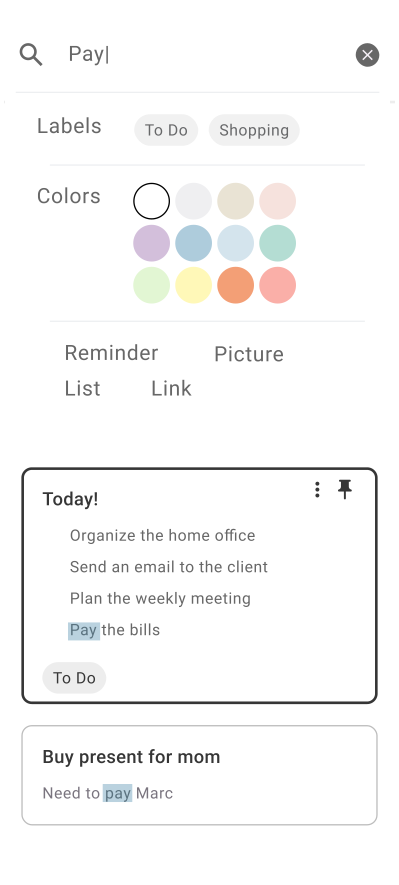
When searching for a specific word, the results now highlight the word within all relevant notes, not just the note titles. Additionally, users can filter search results by tags, colors, and other criteria, making it easier to find specific information.
These enhanced features provide a more efficient and user-friendly experience for organizing and managing notes.
When searching for a specific word, the results now highlight the word within all relevant notes, not just the note titles. Additionally, users can filter search results by tags, colors, and other criteria, making it easier to find specific information.
These enhanced features provide a more efficient and user-friendly experience for organizing and managing notes.